How to use CPDLC with the Fenix A320
This page explains how CPDLC works in the Fenix A319 / A320 / A321.
Initial setup
Before launching your flight, you must configure the Fenix aircraft to use BeyondATC as its ACARS provider.
- Open the Fenix App
- Go to Product Configuration
- Under ACARS Provider, select BeyondATC
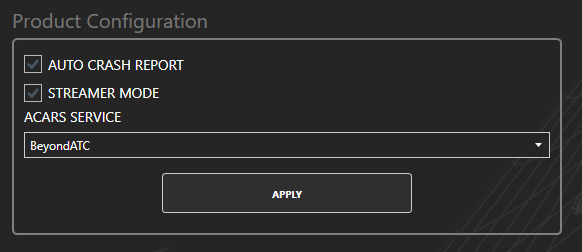
Once this is set, no further configuration is required in the Fenix App.
Overview
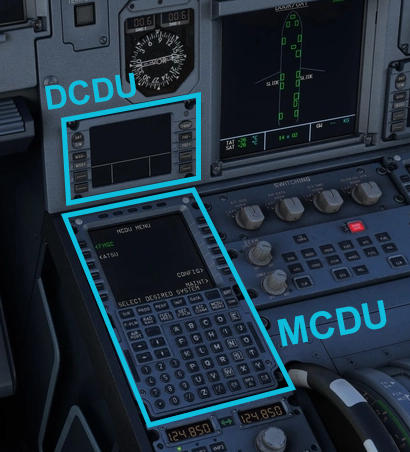
In the Fenix A320, CPDLC/ACARS communication with BeyondATC is handled through:
- MCDU (AOC and ATC pages)
- DCDU (Data Communication Display Unit), used to receive and acknowledge ATC messages
Pre-Departure Clearance
Import Flight Data into the Aircraft
Before requesting a clearance, the aircraft must be aware of your planned flight. This is done by importing your Simbrief data into the aircraft’s AOC system.
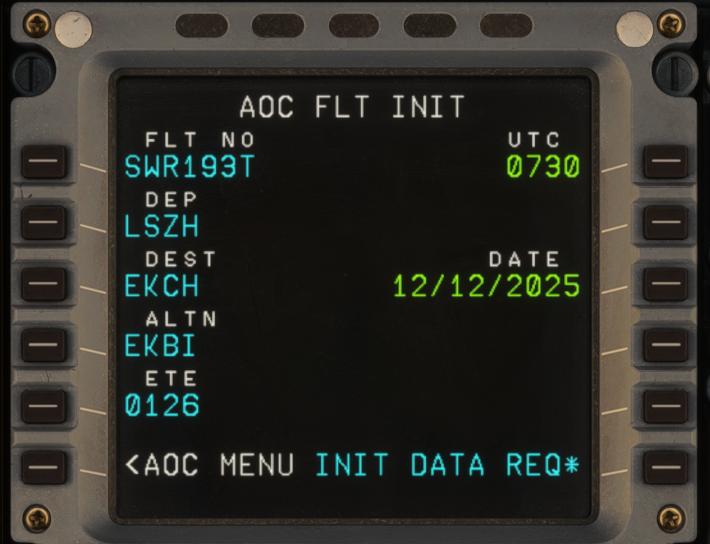
From the cockpit, access the MCDU MENU, then open the AOC MENU and navigate to FLT INIT.
Selecting INIT DATA REQ sends a request to Simbrief and loads your flight information into the aircraft.
Complete the INIT Page
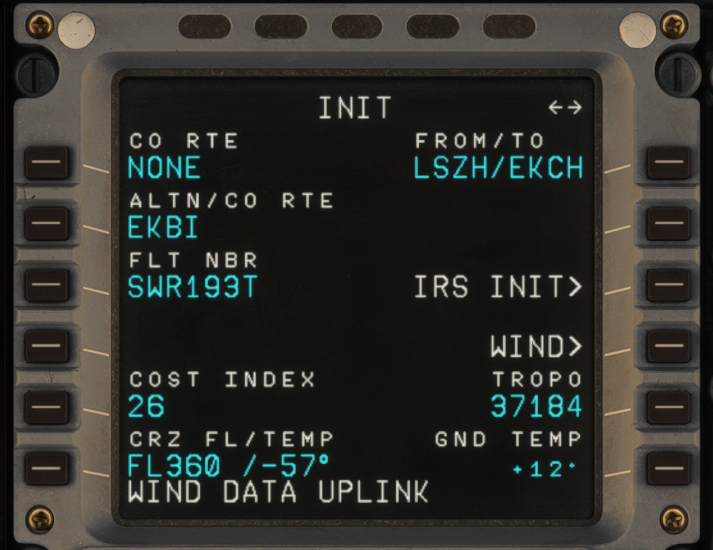
After importing the data, access the INIT page and use INIT REQUEST, then verify and fill in the remaining fields.
The most important entry is the FLT NBR, which must contain your callsign (for example SWR123).
The commercial flight number is not used by ATC and should not be entered here.
You should also confirm the Cost Index and Cruise Level, usually taken directly from Simbrief.
Pre-Departure Clearance Page
Once the aircraft is properly initialized, you can submit the PDC request.
From the MCDU MENU, open the AOC MENU, then select ATC REQ and choose PRE DEP CLRNCE.
This page allows you to provide the final operational details required by ATC.
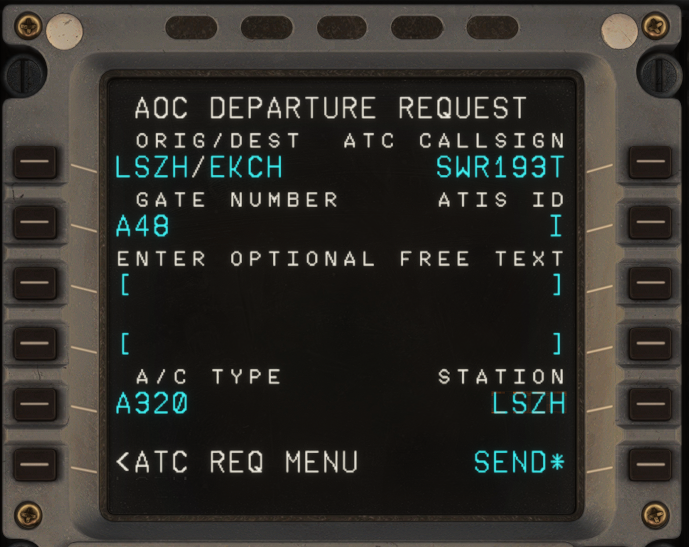
You will be asked to enter your gate number, the current ATIS ID, and the station, which is the ICAO code of your departure airport (e.g. LSZH).
Once all fields are completed, the request can be sent using SEND.
Receive the Clearance on the DCDU
After a short delay, ATC will respond via CPDLC.
The clearance message appears on the DCDU, not on the MCDU itself.
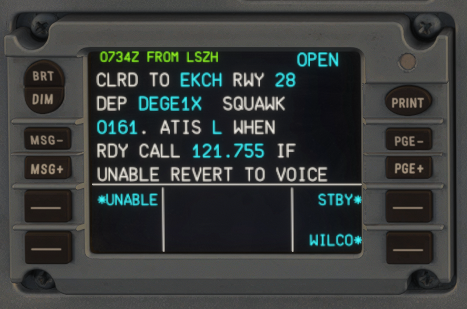
The clearance contains the same information you would normally receive by voice, including your cleared route, assigned runway, SID and transition (if applicable), initial climb altitude, squawk code, and any additional instructions.
Take the time to carefully read and note this information before proceeding.
Once you are ready, acknowledge the clearance by selecting WILCO on the DCDU.
ATC will then send a confirmation message indicating that your clearance has been accepted.
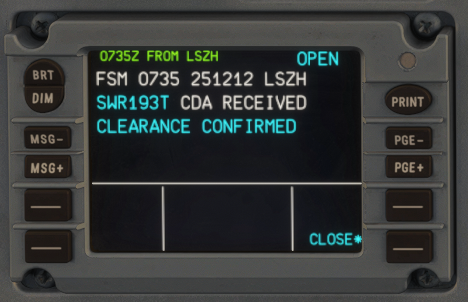
At this point, you are IFR cleared. You may continue your cockpit preparation and, when ready, request pushback using voice communication.
Logon to center
After checking in with Center on the correct frequency, access the CPDLC connection pages on the MCDU.
Navigate to the ATC COMM page, then select CONNECTION followed by NOTIFICATION. On this page, you must enter the ATC Center Code. This code is displayed in BeyondATC under the Frequencies tab for the active Center controller.
Once the correct center code is entered, select NOTIFY to send the logon request.
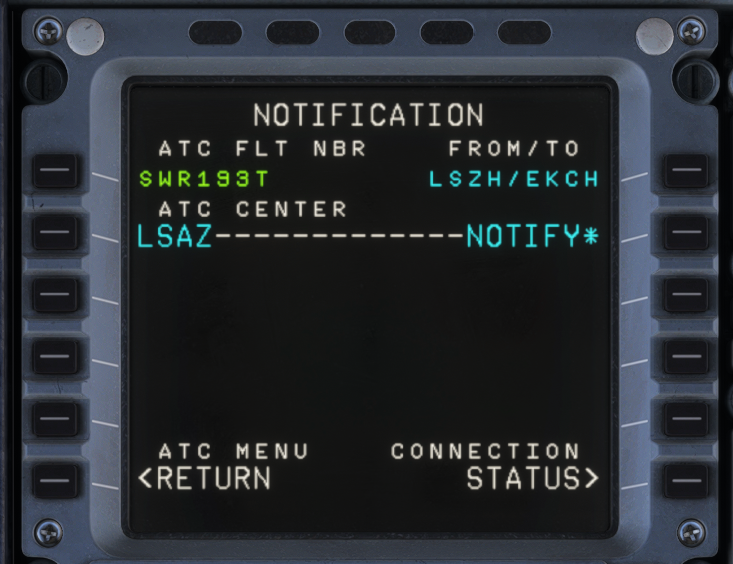
If the logon is successful, ATC will confirm the connection via a message on the DCDU. This confirms that CPDLC is now active with the current Center controller.
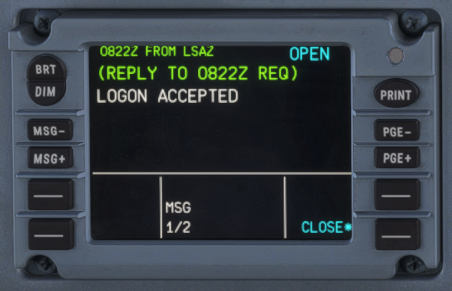
Once accepted, you may begin receiving CPDLC messages in parallel with normal voice communications.
Handoffs
During the flight, ATC will transfer you from one Center to another. When CPDLC is active, these handoffs are delivered via text on the DCDU.
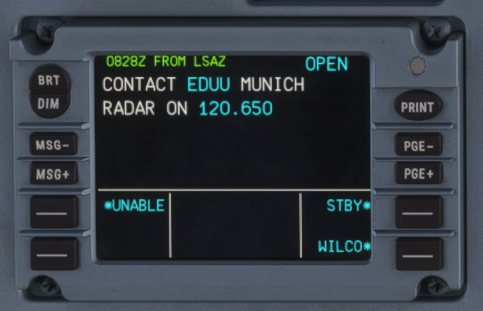
The message instructs you to contact the next Center controller. Acknowledge the message using WILCO, then tune the newly assigned frequency.
Info
When ATC requests CONTACT via CPDLC, you are still required to check in with the next controller by voice.
CPDLC MONITOR operations, which do not require voice contact, are not supported at this time.
Other requests
BeyondATC supports a limited set of CPDLC requests. These allow you to request changes without using the radio, when appropriate.
Currently supported requests include:
- Altitude change requests
- Direct-to waypoint requests
To create a request, open the ATC COMM page on the MCDU and select REQUEST. On this page, you can enter either a desired altitude or a waypoint for a direct routing.
Once the request details are entered, select XFR TO DCDU. This transfers the request from the MCDU to the DCDU for review before transmission.
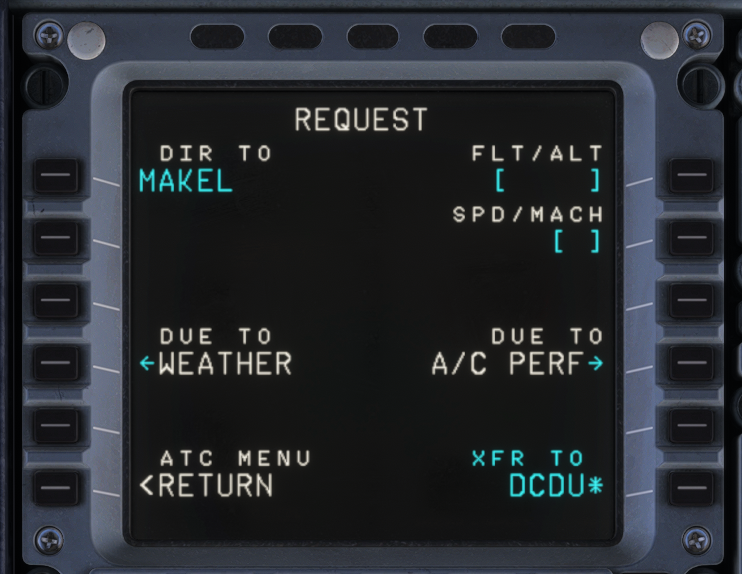
After transferring the request, it will appear on the DCDU. Review the message and select SEND to transmit it to ATC.
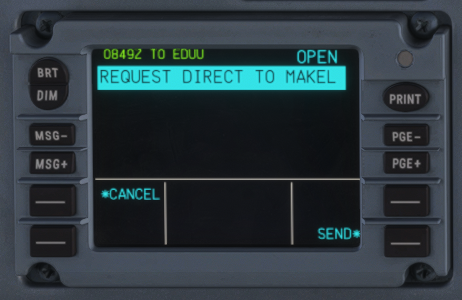
ATC will respond via CPDLC with one of several possible outcomes, such as approval, denial, or a request to standby. Once a clearance is received and acknowledged, you may comply with the instruction as normal.